Skip to main content Skip to footer

Delaware Sweepstakes Casino Players Face September Redemption Deadline After Operator Exits

RealPrize and LoneStar players in Delaware have until September 21 to submit Sweeps Coin redemption requests after gameplay ended in August.

Angelica Praxides | September 3, 2026

stakester news

Key Takeaways

  • Delaware players at RealPrize and LoneStar have until September 21, 2026, to submit Sweeps Coin redemption requests.
  • The deadline follows the end of Sweeps Coin gameplay for Delaware accounts on August 21, 2026.
  • The update shows how Delaware’s enforcement position is now creating player-facing deadlines, not only operator exits.

What Happened?

Delaware sweepstakes casino players now face a September redemption deadline after RealPrize and LoneStar ended Sweeps Coin gameplay in the state.

RealPrize and LoneStar stopped Delaware Sweeps Coin play on August 21, 2026. Affected players must submit redemption requests by September 21, 2026, and withdraw remaining balances before September 22.

The update follows Delaware’s broader enforcement position against unlicensed sweepstakes casino-style platforms. Earlier Stakester coverage reported that RealPrize and LoneStar would discontinue Sweeps Coins for Delaware accounts on August 21, with final redemption requests available until September 21.

Delaware Deadline at a Glance

Item Detail
Affected brands RealPrize and LoneStar
State Delaware
Sweeps Coin gameplay ended August 21, 2026
Redemption request deadline September 21, 2026
Remaining balance withdrawal deadline Before September 22, 2026
Gold Coin access Reported to remain available

Why This Matters

The Delaware update matters because the issue has moved from operator availability to player deadlines.

For players, the key concern is timing. Anyone with eligible Sweeps Coin balances needs to review account notices, redemption eligibility, verification requirements, and withdrawal steps before the September deadline.

For operators, the case shows how state enforcement pressure can lead to phased restrictions instead of an immediate full shutdown. RealPrize and LoneStar ended redeemable Sweeps Coin gameplay while Gold Coin social play reportedly remains available.

For affiliates and publishers, Delaware content should now make the deadline clear. The state should not be described only as “restricted” or “unavailable” without explaining whether the issue is gameplay access, redemptions, or full site access.

Regulatory Background

Delaware has taken a strict enforcement position against unlicensed sweepstakes casino-style gaming.

In April 2025, the Delaware Division of Gaming Enforcement said Delaware residents could no longer participate in VGW LuckyLand’s unlicensed online gaming platforms. The agency said VGW misrepresented its services as promotional sweepstakes while allowing players to purchase coins for casino-style games with potential cash winnings.

That enforcement position has now been followed by additional operator exits and product restrictions. RealPrize and LoneStar’s September redemption deadline shows how Delaware’s approach is affecting not only market access, but also account wind-down procedures for existing users.

Industry Impact

Delaware shows how sweepstakes casino enforcement can create practical player deadlines after operators restrict access.

The state’s approach is important because it relies on existing gambling law rather than a new sweepstakes-specific statute. That gives regulators a path to pressure operators without waiting for new legislation.

For the wider sweepstakes industry, the Delaware case highlights the operational side of market exits. Operators need clear account notices, redemption timelines, verification steps, and customer support during wind-down periods.

It also creates a more detailed update burden for affiliates. Delaware is not just a question of whether a platform is listed as available. Content should explain whether Sweeps Coin gameplay has ended, whether Gold Coin play remains, and whether redemption deadlines still apply.

Compliance Questions Raised

Delaware’s September deadline raises several compliance questions:

  • How will RealPrize and LoneStar handle users who miss the September 21 redemption request deadline?
  • Will Delaware regulators continue issuing actions against other sweepstakes casino operators?
  • Will more operators use phased restrictions, keeping Gold Coin play while removing Sweeps Coin gameplay?

What Happens Next?
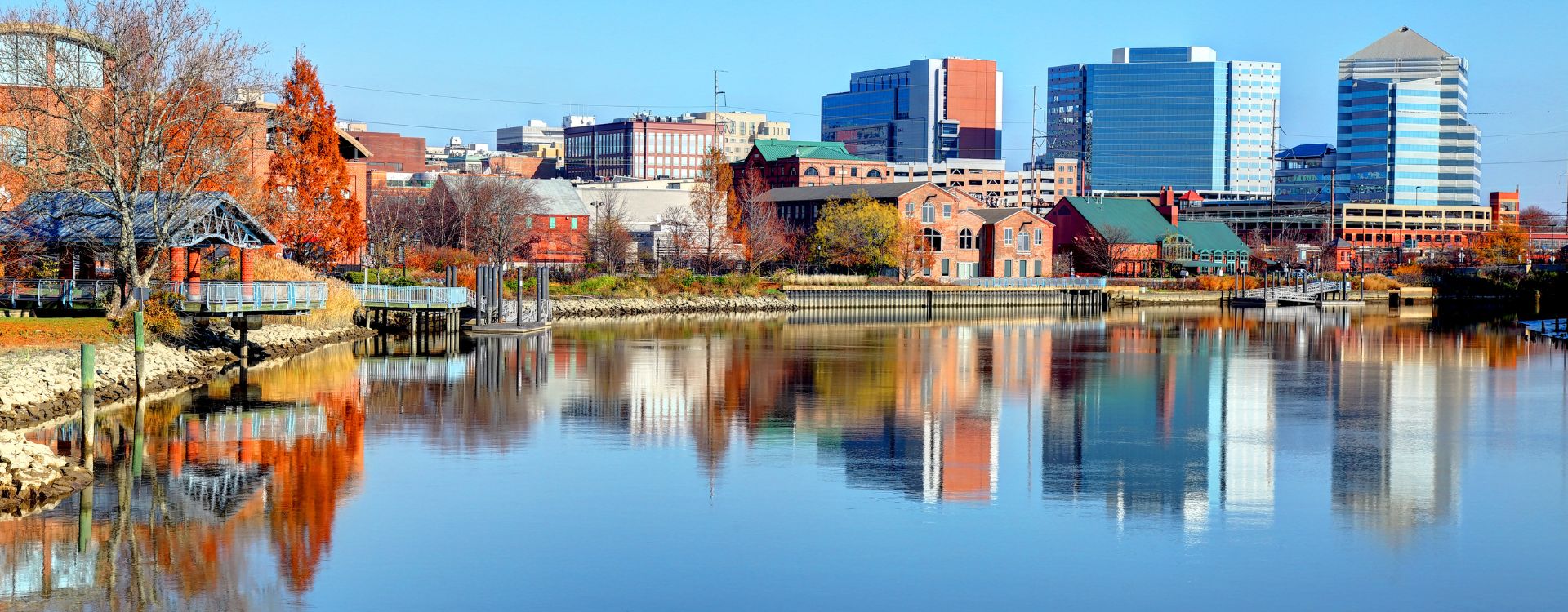
delaware

Delaware players with eligible RealPrize or LoneStar Sweeps Coin balances should submit redemption requests by September 21, 2026, and withdraw remaining balances before September 22.

Operators may continue reviewing Delaware access, especially if they offer dual-currency gameplay with redeemable promotional currency.

Affiliates should update Delaware-facing pages and connect this deadline to earlier coverage of the RealPrize and LoneStar Sweeps Coin restrictions.

Stakester Analysis

Delaware is now a practical example of why sweepstakes casino coverage needs to track more than operator exits.

The key update is the September redemption deadline. Players may already be blocked from Sweeps Coin gameplay, but account activity can still matter if redemptions remain open for a limited time.

For Stakester’s directory and state guides, that distinction is important. Delaware coverage should separate full site availability, Gold Coin-only access, Sweeps Coin gameplay, and redemption deadlines so readers understand what has actually changed.

Related Coverage

Reference

About the author

Angelica

Angelica writes about iGaming and sports trend topics, sweepstakes regulation, market shifts, and player-focused developments across the online gaming world. Her work blends clear reporting with approachable context, making complex updates easier to understand.

Stakester Newsletter

Be the first to find out when a sweepstakes casino launches and receive exclusive offers directly in your mailbox.

Loading
There was an issue loading your website design settings.
There was an issue loading Google fonts.
You have been logged out of the Umbraco CMS, please login again to make your changes.
An error occured. Unable to save your design settings.
Unable to save design panel changes due to invalid uSkinned License.
Preview and select the header layout you would like to use on large screens.
{{styles.themeLayout.showHeaderScrollLarge ? 'Yes' : 'No'}}
{{styles.themeLayout.transparentLargeHeader ? 'Yes' : 'No'}}
Preview and select the header layout you would like to use on small screens.
{{styles.themeLayout.showHeaderScrollSmall ? 'Yes' : 'No'}}
{{styles.themeLayout.transparentSmallHeader ? 'Yes' : 'No'}}
Style modal window links in the main navigation as a mega menu. {{styles.themeLayout.mainNavModalMegaStyle ? 'Yes' : 'No'}}
Choose the number of lines that should appear for your burger navigation icon.
These are used globally, from your navigation dropdowns to your back to top button. Choose the global style to be used.
Choose the global direction you would like your breadcrumb icons to face.
Choose the global options for your heading and secondary heading separators.
Choose the global zoom effect for images on hover. {{styles.themeLayout.imageZoomEffect ? 'Yes' : 'No'}}
All images are lazy loaded to improve page speeds. A low-resolution placeholder image will be displayed first before your full image loads. Choose the Global style to be used.
{{styles.themeLayout.imageBlur ? 'Yes' : 'No'}} Smoothly transition from a blurred placeholder image to provide visual feedback.
Choose the global style of your logo link.
{{styles.themeLayout.logoLinkUnderlineInitial ? 'Yes' : 'No'}}
{{styles.themeLayout.logoLinkUnderlineHover ? 'Yes' : 'No'}}
Choose the global style of your main navigation links.
{{styles.themeLayout.mainNavLinkUnderlineInitial ? 'Yes' : 'No'}}
{{styles.themeLayout.mainNavLinkUnderlineHover ? 'Yes' : 'No'}}
Choose the global style of your secondary navigation links.
{{styles.themeLayout.secondaryNavLinkUnderlineInitial ? 'Yes' : 'No'}}
{{styles.themeLayout.secondaryNavLinkUnderlineHover ? 'Yes' : 'No'}}
Choose the global style of your content links.
{{styles.themeLayout.contentLinkUnderlineInitial ? 'Yes' : 'No'}}
{{styles.themeLayout.contentLinkUnderlineHover ? 'Yes' : 'No'}}
Choose the global style of your footer links.
{{styles.themeLayout.footerLinkUnderlineInitial ? 'Yes' : 'No'}}
{{styles.themeLayout.footerLinkUnderlineHover ? 'Yes' : 'No'}}
Choose the global style of your button links.
{{styles.themeLayout.buttonLinkUnderlineInitial ? 'Yes' : 'No'}}
{{styles.themeLayout.buttonLinkUnderlineHover ? 'Yes' : 'No'}}
Choose to display and set the horizontal position of your 'Back to top' link.
{{styles.themeLayout.displayBackToTopOption ? 'Yes' : 'No'}}
Set the horizontal position of your 'Notification' pop-out.
Create a color palette to be used in your design. Your choices will appear within the color picker for easy selection.
Build up the baseline color palette of your theme..
Build up the full color palette of your theme by choosing any number of background, headings, text and link color combinations. Add as many combinations as you wish.
Build up a full range of button color combinations to be used for call to actions throughout your website. Add as many combinations as you wish.
Build up a full range of label color combinations to be used to highlight text. Add as many combinations as you wish.
Set the width of your site container.
{{styles.themeSpacing.fixedWidth == true ? 'Yes' : 'No'}}
Please note: When a 'Maximum width' is set, you will only be able to preview it when the design editor drawer is closed.
Set the padding applied from the viewport edge.
Set the box shadows used for your site container. This will only be visible when you have set a maximum site width on your site container.
Set the padding from the viewport edges.
Set the size and padding from the viewport edges of your 'Back to top' button.
On small screens your back to top button will be full width.
On large screens your back to top button width and height will be the same.
Set the width of your header container.
{{styles.themeSpacing.headerFixedWidth == true ? 'Yes' : 'No'}}
Set the height of your header on various screen sizes.
Height on small screens.
Height on large screens.
Set the width of the dropdowns in your main navigation.
This layout is used once there are {{styles.themeSpacing.mainNavMultiColumnItems + 1}} child items in the dropdown
Set the box shadow of your site header.
Set the padding around the site logo in the header. Set the padding around the site logo when the small header height is used.
Set the padding around the site logo when the large header height is used.
Set the maximum width of your content.
Set the padding used on individual items.
Padding of small items
Padding of large items
Set the width and radius of borders.
Set the box shadow settings.
Set the width of your footer container.
{{styles.themeSpacing.footerFixedWidth == true ? 'Yes' : 'No'}}
Set the spacing at the bottom of a component when the 'Full' page layout option is not selected.
Set the spacing at the top and bottom of a component when the 'Full' page layout option is selected.
Set the width of the 'Intro' column on components when the 'Full' page layout option is selected.
Set the width of the 'Outro' column on components when the 'Full' page layout option is selected.
Set the width of the content of a component when you have chosen the option 'Center' and the 'Full' page layout option is selected.
Set the width of the content column found in banners.
Set the width and radius of form field borders.
Set the width and radius of button borders.
Set the box shadows of buttons.
Set the padding of all buttons in your site. Set the padding of small buttons.
Set the padding of medium buttons.
Set the padding of large buttons.
Control the settings of components inside modal windows.
Control the settings of pods inside modal windows.
Control the backdrop settings inside modal windows.
Select the fonts to be used across your site. You can choose between System Fonts or Google Fonts.
Select your font family from the list.
Select the style of your font.
Select the weight of your font.
Please enter the web project ID provided by Adobe Fonts.
Enter the font family provided by Adobe Fonts.
Enter the font style provided by Adobe Fonts.
Enter the font weight provided by Adobe Fonts.
Your 'Adobe Font' will not work against your Typography until you confirm your settings.
The Adobe font with Web Project ID: {{item.adobeProjectId}} cannot be found. Please check your settings are correct and try again.
{{item.adobeProjectId}}
{{item.adobeFontFamily}}
{{item.adobeFontStyle}}
{{item.adobeFontWeight}}
Copy the URL of the woff2 font file uploaded to your media section. For example: /media/*****/*****.woff2
Enter the font name of your custom font.
Enter the font stack of your custom font.
Your 'Custom Font' will not appear in Typography until you confirm your settings.
Your custom font file was not found. Please check the woff2 file location you entered is correct and try again.
{{item.customFileWoff2}}
{{item.customFontName}}
{{item.customFontStack}}
Assign the fonts you have added above to the different parts your site.
{{styles.designName}}
Your changes are being saved and published, please wait.
Make the text on your page editable. {{editText ? 'Yes' : 'No'}}
Please note, any text changes you make will NOT be saved. This is for testing your design only.