Skip to main content Skip to footer

Maryland Legislature Targets Sweepstakes Casinos in New Ban Proposals

Maryland’s Senate Budget and Tax Committee has pre-filed SB 112, a bill targeting sweepstakes casino platforms
Maryland Map

The growing movement to stop sweepstakes casino games has arrived in Maryland. This comes after the state’s Senate Budget and Tax Committee has pre-filed Senate Bill 112, which aims to ban “certain interactive games”. 

Then, there’s House Bill 295, which was filed with the House Ways and Means Committee. Both legislations share the same language and objective: to define interactive games as those available online and relying on a multiple-currency system, and to simulate casino-style gaming.

Once approved, interactive games will be banned, and violators will face a criminal misdemeanor, with penalties including up to 3 years' imprisonment and fines between $10k and $100k.

SB 112 and HB 295 Share the Same Language — But Why?

Cards and Suits

Currently, Maryland has two active bills that target sweepstakes casinos: SB 112 and HB 295. The former has been pre-filed by the Budget and Tax Committee in the Senate, and the latter, with the House. 

Both share the same language to give the state broader authority to regulate and penalize sweepstakes casino operators and related activities. Here are the objectives, as detailed in the document:

  • Define and ban interactive games. SB 112 and HB 295 define interactive games as those that operate on multiple currencies model, and simulate casino-style gameplay and even sports wagering.

  • Provides criminal penalties. Violators could face a criminal misdemeanor, with specific penalties of up to 3 years in prison and fees between $10k and $100k.

  • License restrictions. The Maryland Lottery and Gaming Control Commission has the authority to refuse or cancel licenses.

This approach could affect not just operators but also service providers that support sweepstakes gaming, even if that activity occurs outside Maryland

Maryland Joins a Growing List of States Banning Sweepstakes Casinos
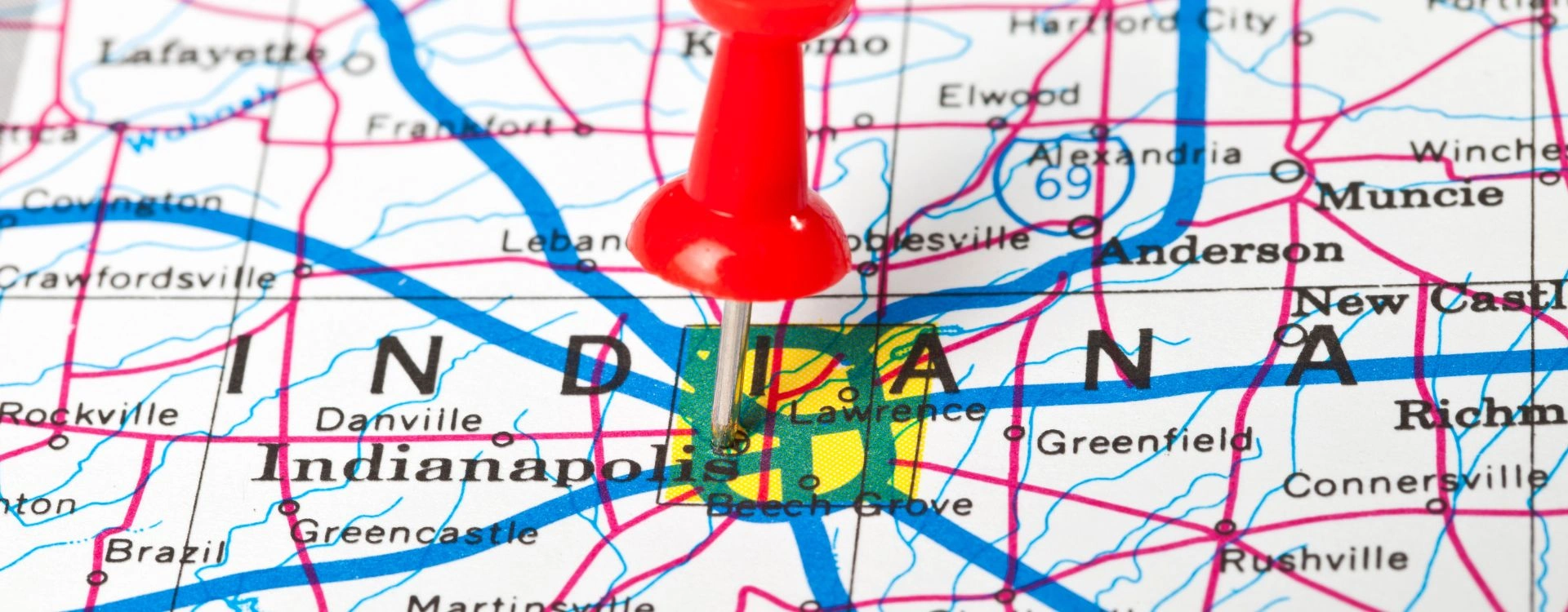
Indiana

Maryland’s latest legislative action puts in the growing list of states that have introduced bans on sweepstakes for this year. Just recently, Virginia filed HB 161, while Maine, Indiana, Florida, and Mississippi also introduced similar legislation.

In Indiana, the plan to ban is up for debate. Indiana Representative Jim Lucas shared that he’s “100% against an outright ban”, giving hope to industry stakeholders.

As the legislative sessions in most states start this month, we can look forward to more debates on the popular sweepstakes casino model. What happens in January could very well spell the short-term future of the industry.

REFERENCES

About the author

Stakester

Stakester connects sweepstakes players who want to put their hard-earned skills to the ultimate test – by playing their favorite games for money and prizes.

Stakester Newsletter

Be the first to find out when a sweepstakes casino launches and receive exclusive offers directly in your mailbox.

Loading
There was an issue loading your website design settings.
There was an issue loading Google fonts.
You have been logged out of the Umbraco CMS, please login again to make your changes.
An error occured. Unable to save your design settings.
Unable to save design panel changes due to invalid uSkinned License.
Preview and select the header layout you would like to use on large screens.
{{styles.themeLayout.showHeaderScrollLarge ? 'Yes' : 'No'}}
{{styles.themeLayout.transparentLargeHeader ? 'Yes' : 'No'}}
Preview and select the header layout you would like to use on small screens.
{{styles.themeLayout.showHeaderScrollSmall ? 'Yes' : 'No'}}
{{styles.themeLayout.transparentSmallHeader ? 'Yes' : 'No'}}
Style modal window links in the main navigation as a mega menu. {{styles.themeLayout.mainNavModalMegaStyle ? 'Yes' : 'No'}}
Choose the number of lines that should appear for your burger navigation icon.
These are used globally, from your navigation dropdowns to your back to top button. Choose the global style to be used.
Choose the global direction you would like your breadcrumb icons to face.
Choose the global options for your heading and secondary heading separators.
Choose the global zoom effect for images on hover. {{styles.themeLayout.imageZoomEffect ? 'Yes' : 'No'}}
All images are lazy loaded to improve page speeds. A low-resolution placeholder image will be displayed first before your full image loads. Choose the Global style to be used.
{{styles.themeLayout.imageBlur ? 'Yes' : 'No'}} Smoothly transition from a blurred placeholder image to provide visual feedback.
Choose the global style of your logo link.
{{styles.themeLayout.logoLinkUnderlineInitial ? 'Yes' : 'No'}}
{{styles.themeLayout.logoLinkUnderlineHover ? 'Yes' : 'No'}}
Choose the global style of your main navigation links.
{{styles.themeLayout.mainNavLinkUnderlineInitial ? 'Yes' : 'No'}}
{{styles.themeLayout.mainNavLinkUnderlineHover ? 'Yes' : 'No'}}
Choose the global style of your secondary navigation links.
{{styles.themeLayout.secondaryNavLinkUnderlineInitial ? 'Yes' : 'No'}}
{{styles.themeLayout.secondaryNavLinkUnderlineHover ? 'Yes' : 'No'}}
Choose the global style of your content links.
{{styles.themeLayout.contentLinkUnderlineInitial ? 'Yes' : 'No'}}
{{styles.themeLayout.contentLinkUnderlineHover ? 'Yes' : 'No'}}
Choose the global style of your footer links.
{{styles.themeLayout.footerLinkUnderlineInitial ? 'Yes' : 'No'}}
{{styles.themeLayout.footerLinkUnderlineHover ? 'Yes' : 'No'}}
Choose the global style of your button links.
{{styles.themeLayout.buttonLinkUnderlineInitial ? 'Yes' : 'No'}}
{{styles.themeLayout.buttonLinkUnderlineHover ? 'Yes' : 'No'}}
Choose to display and set the horizontal position of your 'Back to top' link.
{{styles.themeLayout.displayBackToTopOption ? 'Yes' : 'No'}}
Set the horizontal position of your 'Notification' pop-out.
Create a color palette to be used in your design. Your choices will appear within the color picker for easy selection.
Build up the baseline color palette of your theme..
Build up the full color palette of your theme by choosing any number of background, headings, text and link color combinations. Add as many combinations as you wish.
Build up a full range of button color combinations to be used for call to actions throughout your website. Add as many combinations as you wish.
Build up a full range of label color combinations to be used to highlight text. Add as many combinations as you wish.
Set the width of your site container.
{{styles.themeSpacing.fixedWidth == true ? 'Yes' : 'No'}}
Please note: When a 'Maximum width' is set, you will only be able to preview it when the design editor drawer is closed.
Set the padding applied from the viewport edge.
Set the box shadows used for your site container. This will only be visible when you have set a maximum site width on your site container.
Set the padding from the viewport edges.
Set the size and padding from the viewport edges of your 'Back to top' button.
On small screens your back to top button will be full width.
On large screens your back to top button width and height will be the same.
Set the width of your header container.
{{styles.themeSpacing.headerFixedWidth == true ? 'Yes' : 'No'}}
Set the height of your header on various screen sizes.
Height on small screens.
Height on large screens.
Set the width of the dropdowns in your main navigation.
This layout is used once there are {{styles.themeSpacing.mainNavMultiColumnItems + 1}} child items in the dropdown
Set the box shadow of your site header.
Set the padding around the site logo in the header. Set the padding around the site logo when the small header height is used.
Set the padding around the site logo when the large header height is used.
Set the maximum width of your content.
Set the padding used on individual items.
Padding of small items
Padding of large items
Set the width and radius of borders.
Set the box shadow settings.
Set the width of your footer container.
{{styles.themeSpacing.footerFixedWidth == true ? 'Yes' : 'No'}}
Set the spacing at the bottom of a component when the 'Full' page layout option is not selected.
Set the spacing at the top and bottom of a component when the 'Full' page layout option is selected.
Set the width of the 'Intro' column on components when the 'Full' page layout option is selected.
Set the width of the 'Outro' column on components when the 'Full' page layout option is selected.
Set the width of the content of a component when you have chosen the option 'Center' and the 'Full' page layout option is selected.
Set the width of the content column found in banners.
Set the width and radius of form field borders.
Set the width and radius of button borders.
Set the box shadows of buttons.
Set the padding of all buttons in your site. Set the padding of small buttons.
Set the padding of medium buttons.
Set the padding of large buttons.
Control the settings of components inside modal windows.
Control the settings of pods inside modal windows.
Control the backdrop settings inside modal windows.
Select the fonts to be used across your site. You can choose between System Fonts or Google Fonts.
Select your font family from the list.
Select the style of your font.
Select the weight of your font.
Please enter the web project ID provided by Adobe Fonts.
Enter the font family provided by Adobe Fonts.
Enter the font style provided by Adobe Fonts.
Enter the font weight provided by Adobe Fonts.
Your 'Adobe Font' will not work against your Typography until you confirm your settings.
The Adobe font with Web Project ID: {{item.adobeProjectId}} cannot be found. Please check your settings are correct and try again.
{{item.adobeProjectId}}
{{item.adobeFontFamily}}
{{item.adobeFontStyle}}
{{item.adobeFontWeight}}
Copy the URL of the woff2 font file uploaded to your media section. For example: /media/*****/*****.woff2
Enter the font name of your custom font.
Enter the font stack of your custom font.
Your 'Custom Font' will not appear in Typography until you confirm your settings.
Your custom font file was not found. Please check the woff2 file location you entered is correct and try again.
{{item.customFileWoff2}}
{{item.customFontName}}
{{item.customFontStack}}
Assign the fonts you have added above to the different parts your site.
{{styles.designName}}
Your changes are being saved and published, please wait.
Make the text on your page editable. {{editText ? 'Yes' : 'No'}}
Please note, any text changes you make will NOT be saved. This is for testing your design only.