Skip to main content Skip to footer

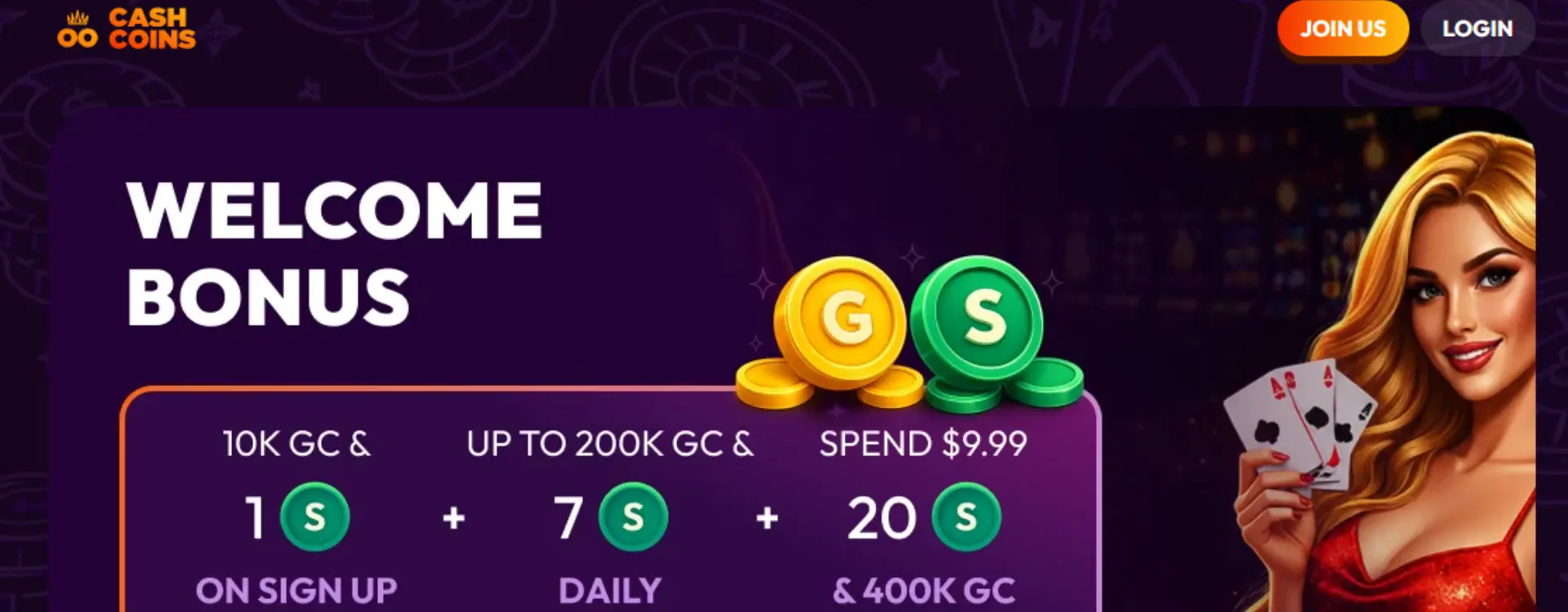
Scoop Rebrands as Cash Coins Casino, Raising Questions Over Player Balances

My Scoop LLC shifts its consumer-facing brand as questions remain over account balances, redemptions, and the reason for the rebrand.

Paula | August 31, 2026

Scoop Rebrands as Cash Coins

Key Takeaways

  • Scoop Casino has transitioned to Cash Coins Casino, with the former Scoop website now directing visitors to the new brand.
  • Both platforms are connected to My Scoop LLC, suggesting the change is a rebrand rather than a straightforward takeover by a new operator.
  • The operator has not publicly explained why Scoop was rebranded or clearly outlined what happened to existing player balances and pending redemptions.
  • The most immediate issue for players is whether existing accounts, Sweeps Coins, and outstanding redemption requests have carried over to Cash Coins.
  • The rebrand highlights a broader industry question: how alternative gaming operators should communicate account and balance changes when moving from one brand to another.

What Happened?

Scoop Casino has changed its name to Cash Coins Casino. That said, the information available suggests this operation remains tied to My Scoop LLC, so this is a rebrand, not a transfer of ownership to an unrelated operator.

For current Scoop players, the main issue is account continuity. The operator has not yet publicly issued detailed guidance confirming whether existing accounts, login credentials, and player balances were automatically transferred over to Cash Coins or if players will need to take additional steps. There is no conclusive evidence that existing balances were cancelled or forfeited in the rebrand.

Pending redemptions are no different. Players who have made a redemption request through Scoop should check whether the request is still active under Cash Coins and whether any action is required on their accounts. The biggest open question right now is the status of individual accounts, balances, and pending redemptions until the operator can provide more clarity on the transition.

Why Did Scoop Rebrand?

My Scoop LLC has not yet confirmed the rebrand publicly.

The transition is clear enough: Scoop has rebranded to Cash Coins. What isn’t known is why the company made the change.

There is no compelling evidence that the rebrand was prompted by regulatory action, litigation, financial difficulties, or some other specific issue. Such explanations are not facts without a statement or filing to support them.

The new branding could signal a broader business or positioning decision, but that remains to be seen. For now, the more pressing question for players isn’t why the name change happened, but whether it will affect their accounts, balances, or outstanding redemptions. Players looking for more stable and diverse lobby, we have a list of sweepstakes casinos in the USA.

Industry Impact

The Scoop-to-Cash Coins transition offers a useful example of the challenges that can arise when an alternative gaming platform changes its public identity.

Operational continuity appears relatively straightforward: the same legal entity, My Scoop LLC, is identified across both platforms.

The customer-facing transition is less straightforward.

When an operator changes its name, players need to know whether they are still dealing with the same company, whether their account remains active, and whether pending transactions will continue to be processed.

That information becomes particularly important in a sweepstakes environment because players may hold promotional balances with potential redemption value.

The change could also affect affiliates and other industry partners. Existing content referring to Scoop may become outdated, while traffic, branding, and tracking arrangements may need updating to reflect Cash Coins.

For regulators and consumer-protection stakeholders, the development reinforces a broader issue: brand continuity and legal-entity continuity are not always obvious to consumers.

What Happens Next?
What Happens Next?

The immediate priority is greater clarity from My Scoop LLC on how the transition affects existing Scoop players.

Former players should check whether their existing credentials work on Cash Coins and verify that any eligible balance is displayed correctly. Players with pending redemption requests should also confirm that those requests remain visible and are still being processed. If an account or redemption cannot be located, contacting the operator's support team and keeping records of previous account and redemption information may help establish a clear transaction history.

From an industry perspective, the next meaningful development would be a formal explanation from the operator covering account migration, player balances, pending redemptions, and any changes to the applicable terms. Regulators or consumer-protection authorities would become more relevant if complaints or evidence of unresolved player issues emerge.

For now, no confirmed regulatory action or court proceeding is directly tied to the rebrand. The focus should therefore remain on whether the transition is communicated clearly and whether existing player obligations are handled without disruption.

Reference

Scoop to Cash Coins Casino 

About the author

Paula

Paula is a dedicated iGaming content creator with a passion for sweepstakes casinos and online slots. Formerly crafting engaging guides on social casino promotions and U.S. gambling regulations, she now delivers the latest news and insights for Stakester. Follow her breakdowns of player incentives, crash game trends, and industry updates to level up your gaming knowledge.

Stakester Newsletter

Be the first to find out when a sweepstakes casino launches and receive exclusive offers directly in your mailbox.

Loading
There was an issue loading your website design settings.
There was an issue loading Google fonts.
You have been logged out of the Umbraco CMS, please login again to make your changes.
An error occured. Unable to save your design settings.
Unable to save design panel changes due to invalid uSkinned License.
Preview and select the header layout you would like to use on large screens.
{{styles.themeLayout.showHeaderScrollLarge ? 'Yes' : 'No'}}
{{styles.themeLayout.transparentLargeHeader ? 'Yes' : 'No'}}
Preview and select the header layout you would like to use on small screens.
{{styles.themeLayout.showHeaderScrollSmall ? 'Yes' : 'No'}}
{{styles.themeLayout.transparentSmallHeader ? 'Yes' : 'No'}}
Style modal window links in the main navigation as a mega menu. {{styles.themeLayout.mainNavModalMegaStyle ? 'Yes' : 'No'}}
Choose the number of lines that should appear for your burger navigation icon.
These are used globally, from your navigation dropdowns to your back to top button. Choose the global style to be used.
Choose the global direction you would like your breadcrumb icons to face.
Choose the global options for your heading and secondary heading separators.
Choose the global zoom effect for images on hover. {{styles.themeLayout.imageZoomEffect ? 'Yes' : 'No'}}
All images are lazy loaded to improve page speeds. A low-resolution placeholder image will be displayed first before your full image loads. Choose the Global style to be used.
{{styles.themeLayout.imageBlur ? 'Yes' : 'No'}} Smoothly transition from a blurred placeholder image to provide visual feedback.
Choose the global style of your logo link.
{{styles.themeLayout.logoLinkUnderlineInitial ? 'Yes' : 'No'}}
{{styles.themeLayout.logoLinkUnderlineHover ? 'Yes' : 'No'}}
Choose the global style of your main navigation links.
{{styles.themeLayout.mainNavLinkUnderlineInitial ? 'Yes' : 'No'}}
{{styles.themeLayout.mainNavLinkUnderlineHover ? 'Yes' : 'No'}}
Choose the global style of your secondary navigation links.
{{styles.themeLayout.secondaryNavLinkUnderlineInitial ? 'Yes' : 'No'}}
{{styles.themeLayout.secondaryNavLinkUnderlineHover ? 'Yes' : 'No'}}
Choose the global style of your content links.
{{styles.themeLayout.contentLinkUnderlineInitial ? 'Yes' : 'No'}}
{{styles.themeLayout.contentLinkUnderlineHover ? 'Yes' : 'No'}}
Choose the global style of your footer links.
{{styles.themeLayout.footerLinkUnderlineInitial ? 'Yes' : 'No'}}
{{styles.themeLayout.footerLinkUnderlineHover ? 'Yes' : 'No'}}
Choose the global style of your button links.
{{styles.themeLayout.buttonLinkUnderlineInitial ? 'Yes' : 'No'}}
{{styles.themeLayout.buttonLinkUnderlineHover ? 'Yes' : 'No'}}
Choose to display and set the horizontal position of your 'Back to top' link.
{{styles.themeLayout.displayBackToTopOption ? 'Yes' : 'No'}}
Set the horizontal position of your 'Notification' pop-out.
Create a color palette to be used in your design. Your choices will appear within the color picker for easy selection.
Build up the baseline color palette of your theme..
Build up the full color palette of your theme by choosing any number of background, headings, text and link color combinations. Add as many combinations as you wish.
Build up a full range of button color combinations to be used for call to actions throughout your website. Add as many combinations as you wish.
Build up a full range of label color combinations to be used to highlight text. Add as many combinations as you wish.
Set the width of your site container.
{{styles.themeSpacing.fixedWidth == true ? 'Yes' : 'No'}}
Please note: When a 'Maximum width' is set, you will only be able to preview it when the design editor drawer is closed.
Set the padding applied from the viewport edge.
Set the box shadows used for your site container. This will only be visible when you have set a maximum site width on your site container.
Set the padding from the viewport edges.
Set the size and padding from the viewport edges of your 'Back to top' button.
On small screens your back to top button will be full width.
On large screens your back to top button width and height will be the same.
Set the width of your header container.
{{styles.themeSpacing.headerFixedWidth == true ? 'Yes' : 'No'}}
Set the height of your header on various screen sizes.
Height on small screens.
Height on large screens.
Set the width of the dropdowns in your main navigation.
This layout is used once there are {{styles.themeSpacing.mainNavMultiColumnItems + 1}} child items in the dropdown
Set the box shadow of your site header.
Set the padding around the site logo in the header. Set the padding around the site logo when the small header height is used.
Set the padding around the site logo when the large header height is used.
Set the maximum width of your content.
Set the padding used on individual items.
Padding of small items
Padding of large items
Set the width and radius of borders.
Set the box shadow settings.
Set the width of your footer container.
{{styles.themeSpacing.footerFixedWidth == true ? 'Yes' : 'No'}}
Set the spacing at the bottom of a component when the 'Full' page layout option is not selected.
Set the spacing at the top and bottom of a component when the 'Full' page layout option is selected.
Set the width of the 'Intro' column on components when the 'Full' page layout option is selected.
Set the width of the 'Outro' column on components when the 'Full' page layout option is selected.
Set the width of the content of a component when you have chosen the option 'Center' and the 'Full' page layout option is selected.
Set the width of the content column found in banners.
Set the width and radius of form field borders.
Set the width and radius of button borders.
Set the box shadows of buttons.
Set the padding of all buttons in your site. Set the padding of small buttons.
Set the padding of medium buttons.
Set the padding of large buttons.
Control the settings of components inside modal windows.
Control the settings of pods inside modal windows.
Control the backdrop settings inside modal windows.
Select the fonts to be used across your site. You can choose between System Fonts or Google Fonts.
Select your font family from the list.
Select the style of your font.
Select the weight of your font.
Please enter the web project ID provided by Adobe Fonts.
Enter the font family provided by Adobe Fonts.
Enter the font style provided by Adobe Fonts.
Enter the font weight provided by Adobe Fonts.
Your 'Adobe Font' will not work against your Typography until you confirm your settings.
The Adobe font with Web Project ID: {{item.adobeProjectId}} cannot be found. Please check your settings are correct and try again.
{{item.adobeProjectId}}
{{item.adobeFontFamily}}
{{item.adobeFontStyle}}
{{item.adobeFontWeight}}
Copy the URL of the woff2 font file uploaded to your media section. For example: /media/*****/*****.woff2
Enter the font name of your custom font.
Enter the font stack of your custom font.
Your 'Custom Font' will not appear in Typography until you confirm your settings.
Your custom font file was not found. Please check the woff2 file location you entered is correct and try again.
{{item.customFileWoff2}}
{{item.customFontName}}
{{item.customFontStack}}
Assign the fonts you have added above to the different parts your site.
{{styles.designName}}
Your changes are being saved and published, please wait.
Make the text on your page editable. {{editText ? 'Yes' : 'No'}}
Please note, any text changes you make will NOT be saved. This is for testing your design only.